
Export your customer list
Go to Settings → Data Management, in the Operations group, and choose Download CSV.
Before you download, the page shows a live count of what’s in the file: “153 customers · 153 properties · 151 pools.”
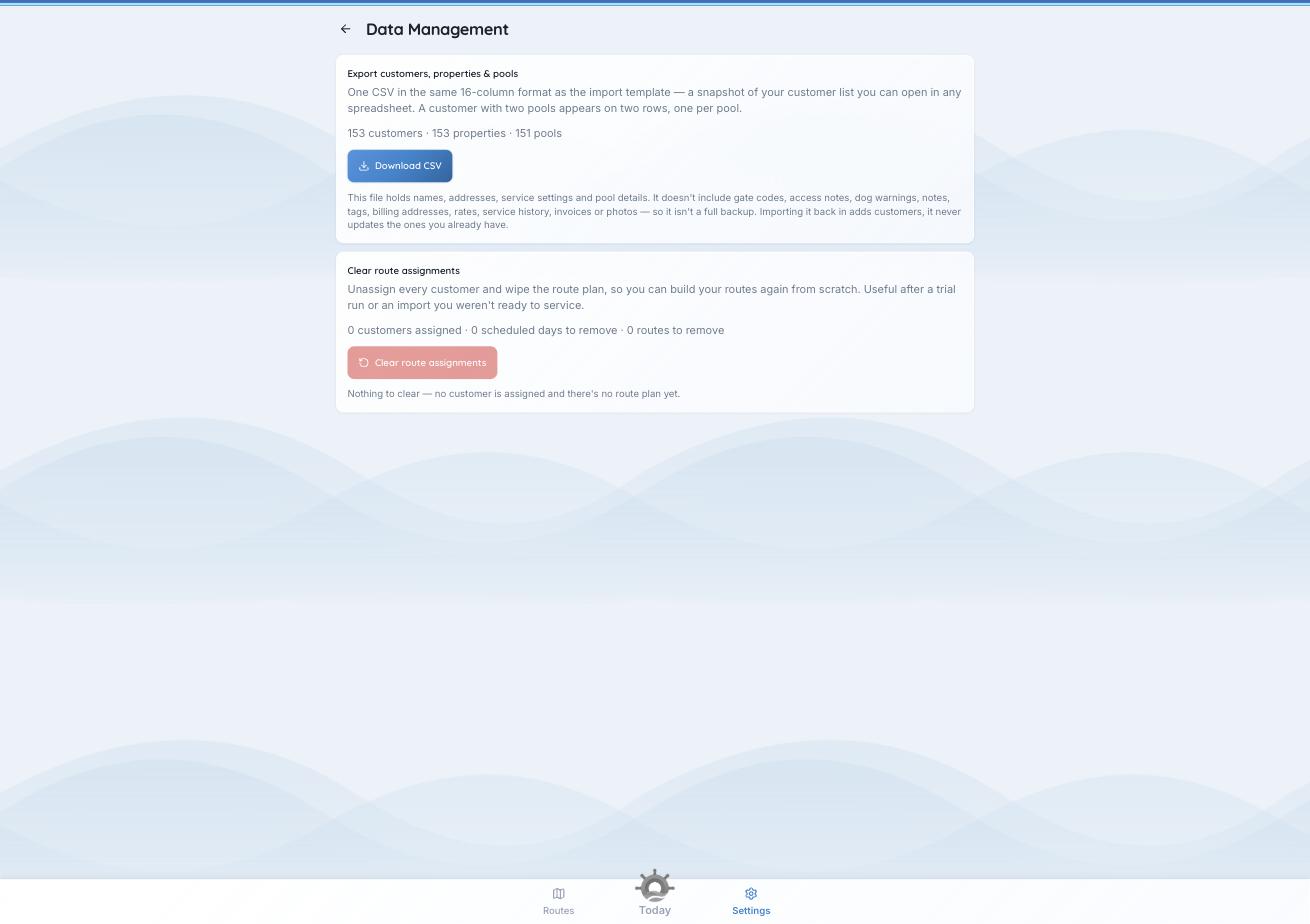
Settings → Data Management. The export is on the left of this page; clearing your routes is below it.
What you get
One CSV holding your customers, their properties, and their pools together, in the same 16-column format as the import template. A customer with two pools comes out as two rows — one per pool — with the customer and property details repeated on each.
It opens in Excel, Numbers, Google Sheets, or any other spreadsheet program.
It is not a backup
The file holds names, addresses, service settings, and pool details. It does not include gate codes, access notes, dog warnings, notes, tags, billing addresses, rates, service history, invoices, or photos. If this file were your only copy of your business, you’d have lost the parts that took longest to build.
Check first. Re-importing this file will not update the customers you already have. PoolHelm recognises them and skips them as already imported — it matches on email, or on first name, last name, street and ZIP. So editing a hundred rates in this file and importing it back changes nothing. To change something across many customers, change it in PoolHelm.
What it’s good for
- Taking your data with you. Your list can leave the same way it came in.
- Working on the list elsewhere. Sorting, filtering, counting, planning a price rise, handing your accountant an address list.
- Seeding another system. It imports cleanly into a fresh PoolHelm organization, and into most other software with a little mapping.
See also: “Import your customer list” and “Start your routes over.”